Register Your Domains Hassle-Free
Showing posts with label Social Networking. Show all posts

Tuesday, 17 September 2013

How to set up Twitter's "view summary" cards to work with Blogger posts

This article shows how to install Twitter Cards into Blogger - and explains why you might do this if Twitter could be an important source of visitors for your blog.


What are Twitter Cards

Recently, Neil Patel explained why having social sharing tags installed into your blog can be important, and I've written a little more about it specifically for Facebook and Blogger here.

Twitter, for reasons best known to themselves, have developed their own version of social media meta-tags, called "Twitter Cards".    (Apparently they do make some use of Open Graph tags - but not for Twitter cards displays.)


Two things happen inside Twitter when someone tweets a message including a link to a website or blog that has Twitter-cards installed.  

Firstly, the message has the words "View Summary" under it, instead of just "Expand".


Secondly, when someone in Twitter clicks the View Summary link, more information (ie a "Twitter Card") is shown about the contents of the link - like this:


In his post, Neil Patel also stated that if you don't use Wordpress,
"you’ll need to manually generate meta tags for each page on your site"
but fortunately for Blogger users who are brave enough to edit their template that's not quite true.


How to install Twitter Cards into a blog made with Blogger

There are two simple steps needed to set up Twitter sharing tags for your blog:
  • Adding the code to your template, and then 
  • Asking Twitter if you've got it right.    
The 2nd step is necessary because (for whatever reason) Twitter won't use the tags you have installed until you've tested them in Twitter's own validation tool.


Step 1   Add the Twitter Card meta-tags to your template


Edit your template in the usual way.


Find the   </head   statement, and just before it add the following lines of code:

<!--  START - TWITTER CARD TAGS   -->
<meta name="twitter:card" content="summary"/> 
<meta name="twitter:site" content="@YOUR-TWITTER-ACCOUNT-NAME"/> <meta name="twitter:domain" content="YOUR-BLOG-URL"/>

<b:if cond='data:blog.pageType == &quot;item&quot;'><meta name="twitter:title" expr:content='data:blog.pageName'/><b:else/>
<meta expr:content='data:blog.homepageUrl' name='twitter:url'/>
<meta expr:content='data:blog.pageTitle' name='twitter:title'/></b:if>
<b:if cond='data:blog.postImageThumbnailUrl'><meta name="twitter:image:src" expr:content='data:blog.postImageThumbnailUrl'/><b:else/><meta name="twitter:image:src" content='URL-FOR-IMAGE-YOU-WANT-TO-USE-IF-THERE-IS-NOT-A-THUMBNAIL-PHOTO-IN-THE-POST' /></b:if> 
<b:if cond='data:blog.metaDescription'><meta name="twitter:description" expr:content='data:blog.metaDescription'/><b:else/><!-- Still looking for a way to use the post snippet if there's no description --></b:if>

<meta name='twitter:url' expr:content='data:blog.canonicalUrl'/>
<!--  END - TWITTER CARD TAGS   -->


Except, you need to replace a few items with your own values:
  • YOUR-BLOG-URL - with your blog's address (eg for me, it's blogger-hints-and-tips.blogspot.com)
  • YOUR-TWITTER-ACCOUNT-NAME - with the Twitter account name for your blog. (This line is optional)
  • URL-FOR-IMAGE-YOU-WANT-TO-USE-IF-THERE-IS-NOT-A-THUMBNAIL-PHOTO-IN-THE-POST - with the web-address of an alternative picture to use if the post doesn't have a thumbnail image.

Save the template changes.


(Twitter also have a code-generator - but it's for websites in general, while I have configured the code above to use some of the values that Blogger makes available to us.)


Step 2   Validate your domain


After you have done the first step, go  https://dev.twitter.com/docs/cards/validation/validator.  This is Twitter's validating tool, where they check if your code meets their requirements.


Log in using your Twitter account.  
You do need to have a Twitter account yourself - or at least one that is dedicated to the blog - to use the validator and thus to install Twitter Cards.


Click the Validate and Apply tab.


Enter the address of a post from your blog and press Go.


If you're using a browser that supports showing Twitter Cards, then a preview of the card for your post will be shown in the right side of the screen.   Check that this looks correct.


Look at the list of results of your Twitter-card values shown on the left of the screen.   If any of them show a red-dot, then there is a problem that you need to fix.   Typically this will be because you've accidentally left out a quote mark when you were adding your custom values.


Fix any problems, and enter the blog-post URL again - keep going until you get a green dot at the top of the list.    (Some of the twitter card values are option, so it doesn't matter if they show as grey because they're irrelevant for a Blogger site.)


Enter the URL of your blog overall  (ie not a specific post).
  • If you do nothave a custom domain (ie your blog is  myBlog.blogspot.com), then make sure you enter the blogspot.com URL, not the country-specific one (eg   myBlog.blogspot.in).   This is important later in the validation process.
  • Fix any problems for this as well.   (There shouldn't be any, but I think it's worth double-checking, especially if you modify the twitter-cards code in any way.)


Press the Request Approval button at the top of the left hand sidebar.


Confirm the administrative details on the screen that opens - by default it will be filled in with details from your Twitter account.   You may be asked for:
  • Contact information for the person responsible for administering cards on your website (name, email address, Twitter handle)
  • Website information:   the URL (ie the domain), and a description.   Note:  if you are based outside the USA and don't have a custom domain, then most probably your country-specific address will be shown here.    Change it to the blogspot.com   address.
  • Whether your site publishes images or videos that may contain sensitive content (eg nudity, violence, or medical procedures) - so that Twitter can warn viewers before showing them.
  • The website's Twitter-name.


Press Submit Request.


After a moment, if your details are correct, Twitter shows a message saying 
"Thanks for applying to be part of Twitter's cards service. We'll review your request as soon as possible. Expect a few weeks for turn-around time. You will receive an email when your request has been reviewed."

I'm not sure if they apply this to all (or indeed any) countries or Twitter accounts:   when I installed Twitter Cards for this site, I got an email in a few minutes saying .
Your Twitter card is ready!
We've activated the summary card for blogger-hints-and-tips.blogspot.com.
If you want to use other kinds of Twitter cards (and we know you do), please make another request.

And the cards themselves were activated on a test-tweet that I did a few minutes after that.


What your readers see

If you have installed the Twitter Cards correctly, your current readers should see nothing different when they visit your blog or when they read your posts via email or and RSS feeder.

But when they include a reference to your blog in something that they send out inside Twitter, the content that they (and their followers) see is a nicely formatted card rather than an ugly-url.


Troubleshooting


Search Descriptions

Twitter cards will only work properly if you have enabled Search Descriptions for your blog, and if you have entered one for every post that is tweeted.    I looked for ways around this using the post-snippet, but haven't found a way to make this work yet.


Country-specific redirects

Neil Patel suggested one tag that is not included in the standard Twitter Cards documentation: twitter:url

Using it gets around the problems associated with country-specifc URLs for blogspot domain blogs, by changing any Tweets of them to the blogspot.com page, instead of having your tweets split across multiple urls.

I've included it in my list of tags, customized to take its value from Blogger.    However I'm not yet 100% sure if it will work - and will update this article accordingly.


Pictures

I've set up the image tag to use the thumbnail picture for each post - because that is the only one that you can access on a systematic way for each post.

Twitter's rules say that pictures must be less than 1mb in file size, at least 60px by 60px, and that ones larger than 120px by 120px will be resized.    However Blogger may have a thumbnail photo for some of your posts that is less than 60-by-60.   For these it is likely that your default image will be used instead.

The only way to over-ride this is to use a post-specific Twitter meta-tag which points to a larger photo like:
<b:if cond='data:blog.postURL == &quot;URL-OF-THE-POST&quot;'><meta name="twitter:image:src" content='URL-FOR-IMAGE-YOU-WANT-TO-USE-FOR-THIS-POST' />
</b:if>

Domains

Twiter's documentation was initially a little sketchy about which specific domain should be validated. Some people reported having to validate all three possible URLs, ie
www.your-blog.blogspot.com
your-blog.blogspot.com
/*your-blog.blogspot.com
although it is possible that this has now been resolved.


What other problems have you encountered with Twitter Cards?


Related Articles:


Adding Facebook's Open Graph tags to your blog

How to edit your template


Thursday, 12 September 2013

How to automatically share every Blogger post you publish on your Google+ page or profile

This quick-tip is about Google's new feature for automagically sharing every Blogger post to Google+


This post explains how to do it:


(How did I do that? Using Google+'s new embed feature. Do you like it? Should I make more quick-tips like this?)


Something I haven't been able to figure out yet is whether this happens for all posts (including edits of existing posts) or just for newly published posts. If it's the former, then getting your posts right before you publish them is probably more important than ever.

Wednesday, 11 September 2013

How to embed a Google+ post into your blog post or website - and what happens when you do

This article explains how you can put a Google+ post (your own or someone else's) into your blog or website, provide the post was shared publicly on Google+.


Recently, Google+ announced a couple of new features.   One of them, embeddable posts, has a lot of potential for bloggers.


Look what s/he said on Google+

Embedding a Google+ post into a blog post is an example of the "look what he/she/I said over there" approach to linking blogs and social-networking sites.

It gives people who are reading your blog up-to-date information about how many other people have plus-1'd the linked content, and an easy way to interact with it "over there" themselves - without leaving your blog.


Why would you want to do this?

The short answer: 

Because you want to write about a Google+ post, and give your readers an easy way to +1 it or comment on it without leaving your blog.

The long answer: 

Because blogs are better than social-networking sites for developing ideas your ideas.

Recently CopyBlogger described 8 reasons why blogs and social media tools (especially Google+) are complementary. He makes excellent points.  But I think he glosses over one fundamental issue: social media posts are short, and give you limited control over their formatting.   Blog posts can be (and usually are) longer, including several pictures, several ideas - and they are constructed to show the connections between the pieces.  They let you develop a case, discuss, compare and contrast - and all the other types of writing that you learned in school.    And as we all learned in school, presentation matters. Showing a picture of what you're writing about gets you better "marks" and more positive feedback.

So - embedding a Google+ post which you're writing, rather than just describing it, makes a blog post far more interesting.

And because they're embedded rather than just shown as a screenshot, these types of Google+ posts get updated +1 counts and comments, without your readers having to leave your blog.


How to put a Google+ post into your blog


Log into your Google+ account - or simply follow a link that someone else gives you, and view a public Google Plus post - this can be from either a personal profile or a Google+ page.


When you are looking at a G+ post that you want to put into a blog or website, click on the drop-down menu in the top right corner.


If the post is public, then there will be an Embed option in the menu-list.   Choose Embed.


Copy the code that is shown, and put it into a post or gadget the same way you would install any other 3rd party code.


OPTIONAL:
If you have already got a plus+1 button anywhere on your blog, you can leave out the first part of the code, ie:
<!-- Place this tag in your head or just before your close body tag. -->
<script type="text/javascript" src="https://apis.google.com/js/plusone.js"></script>
However it doesn't hurt (except very slightly in terms of speed page-load speed) to leave it in.


Customizing the code:

The code that Google give you looks like this:
<!-- Place this tag in your head or just before your close body tag. -->
<script type="text/javascript" src="https://apis.google.com/js/plusone.js"></script>
<!-- Place this tag where you want the widget to render. -->
<div class="g-post" data-href="https://plus.google.com/116176459448466735273/posts/cFPSW8FgZ7U"></div>

Obviously there's not a lot you can change.

But it is interesting to see that you don't actually need to use the G+ embed-code-generator; if you know the Google+ ID and the post ID, then you can easily construct the embed code.

Also, provided you don't change Google's formatting of the G+ post, you are free to put the embed code inside a div statement, which lets you do certain formatting things.  For example, to centre-align the embedded post, use code like this:
<div style="clear: both; margin-left: auto; margin-right: auto; text-align: center;">
PUT THE CODE FROM GOOGLE+ HERE
</div>


Embedded Google+ posts and the Blogger post-editor

If you put the Google+ embed code into a blog post, the post-editor isn't able to show the Google+ item while you are editing the post.

Instead, you see a gap like this:


And you simply have to be carefully not to accidentally delete the embedded item by typing in the gad or deleting it.  

One way to make this easier is to temporarily put a border around the item's code while you're working on the post, using code like this
<div style="clear: both; margin-left: auto; margin-right: auto; text-align: center; border: 1px dotted black;">PUT THE CODE FROM GOOGLE+ HERE</div> 


What do your readers see


Browser-based visitors

People who see your blog or website in a regular browser will see an embedded Google Plus post looking like this:


But what they see is not just an image: it's a fully-functional Google Plus post, where they can:
  • Plus-one the original post, and see the faces of (some) others who've +1'd it.
  • Follow or un-follow the poster themselves
  • Expand / Collapse the comments.
  • Add to the comments.
  • +1 individual comments


Most of these features are shown even if the read isn't logged in to a Google+ account themselves at the time:   when they go to use the feature, they simply have the Google+   "log in or sign up" screen shown to them in a new page.


Readers who subscribe to your blog using RSS

The experience for people who follow your blog via RSS partly depends on what RSS reader they use.

Someone who is using The Old Reader (my current preferred RSS reader) just sees a gap - and even the dotted line that I have around the above post above isn't showing.


Readers who follow-by-email

Readers who follow your blog by email will post probably not see embedded Google+ posts. Again, I'll update this post in a day or two (after Feedburner has delivered my own subscription) with a report about how it looks in Thunderbird. Readers who use other email clients may have a different experience.


What are the terms and conditions

Every time you get Goolge+ post embed code, there is a reminder that "By embedding Google+ posts, you agree to our policies."

It's possible that these rules will change over time. But you can read today's version here.

And I'm no lawyer, this isn't legal advice - but my interpretation of the current version is:
  • You're not allowed to put Google+ posts on sites that break the Google+ User Content and Conduct Policy.   Eg pages that promote illegal things, have sexually explicit material, or includes malicious code.
  • You must not put Google+ content in ways that amount to bad behaviour, eg bullying or harassment.
  • You cannot put Google+ content inside advertisements "or for other commercial purposes" - this bit is interesting. I've put some Google+ content inside a blog that has advertisements - I wonder if this means I'm breaking the rules?
  • You cannot change the Google+ content or the stuff that Google+ puts around it.
  • You cannot try to find out the identity of users who comment on embedded Google+ content unless they agree to share their identity with you.
  • You cannot use, sell or give other people any data from embedded Google+ content, including any use of pixels, cookies,
  • You give Google permission to review and analyze your website by putting Google+ content on it.

If Google find out that you've broken the rules, they may review and take action, including blocking you from using embedded Google+ content on your website.   (And I'd guess that it won't do good things for your site's search rating either.)


Final thoughts

The elephant in the terms-and-conditions room is, of course, copyright.   But for now I'm assuming that somewhere in Google+'s T&Cs they have a non-exclusive right to display things that their users post, and that this right extends to G+ content that is embedded.   Fingers crossed.


What do you think:  would you be annoyed if I embedded your Google Plus post on my website? 

And is this a feature you will use on your blog?   


Related Articles:


Ways of linking your blog and the social networks

How to put 3rd-party HTML/Javascript into Blogger

Introducing Google+ Pages

How to center items in Blogger

Saturday, 13 July 2013

What is Google Friend Connect

This article describes Google Friend Connect, and how it can be used at the moment.


Google Friend Connect (GFC) was one of Google's earlier social-networking attempts, introduced in 2008.

Originally (you can still see the full description here), GFC promised a range of social features that website-owners, including bloggers, could include on their sites. including:
  • Add GFC features to a website by installing snippets of HTML code onto the site, or or using the  API.
  • Users sign in to your website, using GFC with an existing account (e.g. Google, Yahoo, AOL)
  • Users can create or import profiles (e.g. Twitter), discover other users, and send private messages to each other.
  • Social gadgets, eg for posting comments and links, rating and reviews, that you could add to your site, which your visitor could use once they had logged in with GFC.
  • Website owners can set up questions to be asked when a user used GFC to join their site. The idea was for them to find out their member's interests - and that the information would be on the member's GFC profile.
  • Tools to create, manage and send website newsletters, which could be personalised, based on the answers that members gave when joining the community.
  • Matching AdSense ads on shown to users looking at your website site to the interests they had listed on their GFC profile.
  • Tools to look at your user's interests and your site's membership statistics.
Effectively, Google Friend Connect was a group of tools, and some stuff in the background to make them work together:  The tools were for website owners who wanted to grow a community, and for "information consumers"  (that means people who read blogs and websites) who wanted to sign-up to their favourites sites.

You can find out more about how they were supposed to work in this video - for as long as it's still available on YouTube:


What happened

Less than four years after the launch, Google announced that Friend Connect would be "retired for all non-blogger sites in March 2012".   Their announcement was light on details about what exactly this meant, but reading various blog posts it seems that:
  • The GFC dashboard, where users could manage their profiles was turned off
  • The site where website owners could get the code to install the GFG gadget  (and do other things like send newsletter or get statistics) was turned off.
  • Blogger users could still add teh GFC gadget to their blogs   (until the widget was removed in ... not sure exactly when, but it's not available now).
  • Updates from non-blogger sites were no longer sent through GFC.
  • Updates from Blogger sites were still send through GFC, and users could continue to get them through Google Reader (until it was turned off in July 2013) or the Blogger Dashboard.

Google didn't provide give any options for moving GFC user or relationship data into any other tools.

And why?

Overall, my guess is that GFC didn't get enough users - or perhaps it just didn't give Google with enough of a platform for the social features that they wanted.  Possibly this was because:
  • The things which Google Friend Connect promised a number of privacy / security questions. I can't put my finger on exactly what worried me - but somehow it just sounds wrong to me..
  • People asked "Why would I want to share all my interests with someone just because I read their website? I can maybe understand it for a blog, but not for websites in general."


So why did anyone bother - and why is the GFC Followers gadget still on some blogs.


Obviously there were problems with Google Friend Connect:   Personally, I never quite understood it, despite using Blogger long before GFC was introduced.   Even when I started Blogger-HAT in late 2009, GFC just never stood out as something that was important-enough for me to understand.

But some people did use it - and in particular enough Blogger users that Google decided not to turn it off for Blogger.

I noticed that other people had a GFC gadget on their blogs, so I added one to Blogger-HAT - as much as anything because I use it as a test-site to try out features to see how the might work on my other sites.

Finally today, the penny dropped when I saw this a comment "some people that they used their GFC/Blogger Dashboard in place of something like Google Reader" here while I was researching this article.   What it means is that if you signed up to a blog/sites using the GFC-Follow gadget, then you can use the bottom part of the Blogger dashboard instead of an RSS reader.

Today, readers can still sign up for websites which have the Follow on Google Friend Connect gadget on them, but the gadget cannot be added to any new sites, at least not using Blogger's standard tools for adding a gadget to your blog.

The Blogger-dashboard is still being updated with posts from Blogger-based sites that you've signed up to using GFC.

Lots of people are speculating that sooner or later this will be turned off, but no one knows exactly when that will happen.


Related Articles:

How to add a gadget to your blog

Where to find the HTML code for popular gadgets

Linking your blog to the social networks

Putting a Facebook Page badge into Blogger

Sunday, 6 January 2013

Stop Blogger offering to share your posts to Google+

This article describes Blogger's share-to-Google+ feature, and shows how to stop Blogger offering to share to your Google + circles every time you publish a new post, and what you cannot (yet) do with the feature.


Automatically updating Google + from your blog

If you have linked your blogger-account to your Google+ profile, then by default you are shown a pre-filled Google+ share box with details of your post in it, every time that you publish a post, including times when you edit a post that has already been published.

The share box has a snippet and thumbnail picture  based on your post, and section where you can add a comment, remove the description, choose the circle(s) to share it with, and say to also email people who are not in your circles.

You can change the picture associated with the shared post using the arrows (hover over the top left of the suggested picture - the arrows circle through the other available pictures. Or you can remove it using the cross button (hover over the top-right of the suggested picture).

The top right corner shows whether the post is being shared to your personal profile to the the Google+ Page that you previously linked with the blog.


This is one of the easiest ways of sharing your blog posts with any of the social networks: it lets you customise the content of the message and target it carefully, without having to leave Blogger to do so.


Don't bother me: stop Blogger offering to share to Google-plus

If you don't want to see the "share on Google+" option every time post, you can turn the feature off for individual blogs. To do this:

1   Go to the Google + tab.

2   Untick the "Prompt to share after posting" button, currently found underneath your list of Pages

(Unlike some tabs, changes on this tab are automatically saved.)


Why would you want to do this?   After all, if your accounts are linked, then surely you want to share your posts to Google+?

Actually there are a number of reasons why you might want to disable this feature.   Some that I can think of are:
  • If you make frequent edits to existing posts it would probably annoy the people in your circles if you shared all of them - and it slows you down, because the share screen takes a few seconds to load every time you publish.
  • You might just want to do the share, but at a later time than the initial post, to spread out the new-post impact.

Even if you've turned off the "offer to share" option, you can still Google+ share individual posts by selecting "share" from underneath the title in the Blogger Dashboard > Posts tab.


Troubleshooting the Google + share option:

You only see this option if when you publish a post, if:
  • You have not previously turned it off for this particular blog
  • Your blog is not private.
    If you try it on a blog with restricted readership, instead of an error message you are given the not-very-helpful option to share the Blogger sign in screen, like this:

error message saying To access you blogs, sign in with your Google Account.  The new Blogger requires a Google Account to access your blogs.  Haven't switched yet?   Sign in using your old Blogger account instead.


Doing more with the Blogger / Google-Plus share feature

Currently there is no way to:
  • Totally automate the share, so it happens without you pressing Ok in the "Share this on ..." box.
  • Show the labels from your post in your shared item
  • Schedule the share
  • Automatically share posts published with mail2Post or which are scheduled to Publish in the future.
  • Change whether the post is shared to a selected Google+ page or your personal circles
    This is controlled by a global setting that you can edit on the Blogger Dashbaord > Google + tab, but you cannot alter it on the fly.


Related Articles:

Post-snippet and post-thumbnail: where do they come from

Linking your blog to the social networks

Prepare Posts in Private, so you can Publish when they're Perfect

How to edit posts that you have already published

Mail2Post: post to your blog without using Blogger

Using Labels to categorize blog-posts

Friday, 18 May 2012

Planning how to use your blog VS your Facebook, Twitter, Pinterest, G+, etc: what is each one for?

This article describes working out how your blog relates to the other communication tools that you use (sometimes called your "social media strategy"), and how members of a community-group can work together to so that their blog, Facebook page are used well. 


It includes a template that you can use to record your own group's decisions about how to use these tools, and a worked-example of such a template.


Your blog vs your email, facebook, twitter, photo albums  


social media lifecycle - email message - internet - facebook - camera - picture
Recently, I used Blogger to make a new website for a community choir. It replaced an older website that was expensive to change.

As we talked about what the choir needed, one challenge was that some people thought that "put it on the website" or "put in on Facebook" was the answer to every issue that involved communicating with members: It took a lot to explain that Facebook and the website are not actually places where existing members look regularly. (Some members are older, and don't even have cellphones that receive SMS/text-messages, much less computers and broadband connections).

Also, people were talking about putting videos of our concerts onto YouTube, and I realised that we would need to work out ways of doing this so as to show us at our best, and not get us into trouble with copyright laws.

I didn't use this jargon when I was talking to them, but the idea I had to get across to the commiittee was
To get a message to people who aren't looking for it, use a "push" not a "pull" or "by the way" message[tweet this quote]

How to make a Tweet-this-quote

That means to use email, text-message, phone call, face-to-face, rather than the website or Facebook page or wall.

I also had to get them to understand that we were not linking our blog and our website - but that the blog would be the website:  it delivers all the features that we need, and most importantly is very easy to update.

Working with the committee to understand their goals and month-by-month activities, I developed this set of questions:
  • how do we communicate with people (email/txt, Facebook, website, pictures, local newspapers)?
  • who is the audience for each tools we use (members, potential members, audience, other choirs)?
  • what types of messages to do we send?
  • who is responsible for sending the messages?
  • how they know that it's time to send a message, and what it should say?
  • what can each committee-officer send without getting permission from the committee?
  • what needs to be checked by someone else (or maybe even the whole committee) first?

Showing this in a table helped people to understand the big picture, and the role of the website and the other things that we use.

Your blog & social networks
Downloadable template
It occurred to me that people doing the same thing for their own club, organisation, sports team, non-profit, or even small business, might also like this table.

So here is a blank version of my template (MS Word format) that you are welcome to download and adapt for your own situation.


What the template includes


Is this a social-media strategy for your blog?

The format above is good for helping a membership-organisation work out where their blog/website fits into their overall communications tookkit: social media are just one of the ways that clubs can give messages to people (members, friends etc) and get feedback from them.

But if your core product is your blog, and you want to use social-outposts to promote it, then a slightly different planning approach is needed. In this case you need to get messages to:
  • People who casually visit your blog (via search results, friends recommendations, backlinks), and whose preference for keeping up with what you do is via some other network, AND
  • People who hang out on the "other network" and might notice your content in the other place and then visit your blog as a result.

To meet these needs, you need to put links to all the material on your blog into the other social networks - as well as using whatever content promotion techniques work best on that network. You probably also want to put some follow-invitation links on your blog, too. This is unlike the "website as targeted communications tool" approach, where you only put certain, very specific content onto your blog/site.

I'm still working on the fundamental difference between the two approaches, and what sort of worksheets might help people to plan for the 2nd case. Any suggestions on what I need to cover?


Related Articles:


Copyright, blogs and bloggers.

How to link your blog and your website

Linking your blog to the social networks

Showing a PowerPoiint presentation in your blog, as a slideshow

Monday, 14 May 2012

Six simple subscription buttons for Blogger

This article shows how to make a very simple row of subscription buttons, using image files that you host yourself.


Keep it simple stack of buttons
In the sidebar or header of my blogs, there is a very simple set of subscription buttons.  Visitors can use them to sign up to follow me (ie my blog's account) on Facebook, Twitter, RSS, LinkedIn, PInterest, etc.

These buttons don't fly-in, hover, shine, zoom, slide, pop out of egg-shells, sing songs or wash the dishes[tweet this]

They don't take up any more space than is absolutely necessary. They don't spend load time calculating how many followers you have.

But they work.

This article is in response to a reader, who asked how to make a similar set of sign-up buttons for himself.   It's a little longer than some similar articles, because I wanted to give enough detail so you understand what needs to be done, and why.


How to make simple subscription icons for your blog:


1 Choose which social networks you want buttons for


You need to consider which of the social networking services you want to use to promote this blog.  Some people will say "all of them", but this isn't a great idea - it can take a lot of time, and if your blog's target audience aren't using a network, then you don't need to be there either.

So, make a list of the services you want to offer a follow-option for, and make sure that you have an account there for your visitors to subscribe to. This may be a personal account or a business / group / community / entity-page, all that matters is that you know how to refer to the account you want to offer a subscription too.

Some of the common ones are:
  • Facebook
  • Twitter
  • RSS
  • Google+
  • LinkedIn
  • YouTube
  • Pinterest

Remember, these icons are for inviting your readers to follow your "social media outpost" on the other network:   for them to be useful, you need to be regularly posting on the networks you offer.


2 Get image files


The image file for each button you use needs to come from somewhere.  Some social networks provide it for you, and are happy to provide a copy each time your blog loads their subscription button.

But others don't.   For them, you need to make your own copy of the icon image-file that you need for the services you've chosen.

Google+, Feedburner and Twitter provide images, so you don't need to organise files for them yourself.

You are welcome to borrow the files shown below, which I've borrowed from elsewhere, I believe legally.   If you want to use one of these files,
  • right-click on the picture shown here, 
  • save the target somewhere 
  • upload it to the file-host of your choice (I recommend Picasa-web-albums)
  • and keep a note on the picture's URL wherever you loaded it to.


You can  also use your own image files. It doesn't matter if they are larger that mine, because the code re-sizes them. But for it to work properly, they need to be square, ie the same height and width.

Whatever icons you decided to use, you need to upload them to an image-host: I use Picasa-web-albums (ref What is Picasa?), but you may prefer a different picture-file host,

Make sure that you can find out the URL for each image.

Why this approach? Many people offering gadgets like this just let your blog link to their own copy of the images. But I don't like this - because if I ever move the file, your gadget will fail. I think you need to have and use your own copy, so I'm not responsible for your buttons working years in to the future.


3 Customize the gadget code


This has three stages.

First, get this basic code for the gadget bar.   Copy this into a text-editor (eg Notepad)
<div style="clear:both; text-align: left; float: left; padding-bottom: 10px;">
<!-- PUT THINGS IN HERE-->
</div>

Second, from the  section below, copy the code for the services that you want, and paste it into the area between the <div> start and end statements, ie where <!-- PUT THINGS IN HERE--> is in the basic gadget-bar code.

Notice that I've shown you what each block of code is for by using comments at the start and end, like this:   <!-- THIS IS THE CODE FOR FACEBOOK-->       The <!--     and -->    are the way to say "ignore what's in between here" in HTML.

<!--  THIS IS THE CODE FOR GOOGLE+ -->
<a href="https://plus.google.com/YOUR-GOOGLE-PLUS-ID?prsrc=3" style="text-decoration:none;">
<img src="https://ssl.gstatic.com/images/icons/gplus-32.png" alt="Subscribe to YOUR-BLOG-NAME on Google +" style="border:0;width:32px;height:32px; margin-left:5px; margin-right:5px;"/>
</a>
<!--  END OF  THE CODE FOR GOOGLE+ -->

<!-- THIS IS THE CODE FOR FACEBOOK--><a href="https://www.facebook.com/YOUR-FACEBOOK-NAME" imageanchor="1">
<img src="URL FOR THE FACEBOOK ICON"  alt="Follow me on Facebook" style="border:0;width:32px;height:32px; margin-left:5px; margin-right:5px;"/>
</a>
<!-- END OF THE CODE FOR FACEBOOK--> 

<!-- THIS IS THE CODE FOR YOUR RSS FEED--><a href="<b>YOUR FEED ADDRESS</b>" rel="alternate" type="application/rss+xml">
<img src="http://www.feedburner.com/fb/images/pub/feed-icon32x32.png" alt="RSS subscription icon" style="border:0;width:33px;height:33px; margin-left:5px; margin-right:5px;"/>
</a>
<!--  END OF THE CODE FOR YOUR RSS FEED-->

<!-- THIS IS THE CODE FOR TWITTER --><a href="http://www.twitter.com/YOUR-TWITTER-ACCOUNT-NAME">
<img alt="Follow  &lt;b&gt;YOUR-TWITTER-ACCOUNT-NAME&lt;/b&gt; on Twitter" src="http://twitter-badges.s3.amazonaws.com/t_logo-a.png" style="border: 0; height: 33px; margin-left: 5px; margin-right: 5px; width: 33px;" />
</a>
<!--  END OF THE CODE FOR TWITTER -->

<!-- THIS IS THE CODE FOR YOU-TUBE  --><a href=" http://www.youtube.com/user/YOUR-CHANNEL-ID">
<img src="YOUR YOU-TUBE IMAGE LOCATION" alt="Follow YOUR-CHANNEL-ID on YouTube" style="border:0;width:33px;height:33px; margin-left:5px; margin-right:5px;" />
</a>
<!-- END OF THE CODE FOR YOU-TUBE -->

<!-- THIS IS THE CODE FOR PINTEREST --> <a href="http://pinterest.com/YOUR-PINTEREST-ACCOUNT-NAME/">
<img src="http://passets-cdn.pinterest.com/images/about/buttons/big-p-button.png" style="border:0;width:33px;height:33px; margin-left:5px; margin-right:5px;"alt="Follow Me on Pinterest" />
</a>
<!-- END OF THE CODE FOR PINTEREST-->

<!-- THIS IS THE CODE FOR A LINKED-IN PERSONAL PROFILE--><a href="http://www.linkedin.com/in/YOUR-LINKEDIN-PROFILE-NAME/">
<img src="YOUR-LINKEDIN-PICTURE-URL" style="border:0;width:33px;height:33px; margin-left:5px; margin-right:5px;" alt="Follow Me on LinkedIn" />
</a>
<!--  END OF THE CODE FOR LINKED-IN-->
</div>


Third, customize this code with your own details.   For each service that you want to show a subscription button for, replace
  1. The account name that you want your readers to subscribe to
  2. Any other items in UPPER-CASE  (eg Twitter's "via" parameter)
  3. The URL for the button image (if necessary)


4 Add the gadget

  • Add a gadget to your blog in the usual way: The type of gadget to use is HTML/Javascript.
     Put the customised code that you made into the Contents field.
  • Choose whether to give it a title ("subscribe" works with techy audiences, but in other niches phrases like "follow-up" or "get free updates" are better).
  • Choose where to put it:
    If the space that you have available is too narrow, you may like to tweak the code - see below for more on this.
  • After you've saved the gadget, test all the buttons to make sure that they all work they way they should


5 Back up the gadget code


Blogger doesn't have any way for us to back up the settings inside our gadgets.

And it's very easy to either accidentally delete the whole gadget, or lose the code becasue you try to change it and make an error:  if the HTML-gadget editor sees an error in your code, it doesn't tell you about the problem, it just deletes the code that it does not understand.

Because of this, I very strongly recommend that you keep a backup copy of the code

Some people use a text file for this. Personally, I usually keep it in a post in the private documentation blog that I keep for each of my main blogs.   Either way, it's important to keep it up to date as you do "tweaks".


Job done:   You should now have a working set of simple-subscription-buttons on your blog.   But you do still have some options for tweaking the button size and position, as explained below.


Adjusting the button sizing and spaces


Depending on the width of your sidebar, and the margins inside any button-pictures that you use, you may want to tweak the code a little.   This is easy enough to do.    Notice the structure of each piece of button code:
<!-- THIS IS THE CODE FOR A WHATEVER -->
<a href="THE URL TO SUBSCRIBE TO">
<img src="THE IMAGE LOCATION"
style="border:0;width:33px;height:33px; margin-left:5px; margin-right:5px;"
alt="Follow Me on LinkedIn" />
</a>
<!--  END OF THE CODE FOR WHATEVER-IN-->

I've put a few line breaks in, so you can see that there is
  1. Opening comment
  2. A href statement = the address of what is being subscribed to
  3. The image address, 
  4. Style commands for the image
  5. alt-text (the latter is read out to visually-impaired people)

To change the size or position of the icon, or the space between then, just change the values in the Style commands, ie inside   style="border:0;width:33px; height:33px; margin-left:5px; margin-right:5px;

Make sure that you don't accidentally remove either of:
  • The semi-colon character ( ; ) which needs to be at the end of each statement
  • The full-colon character (  :  )  which is in between the name of the thing you are changing and the value.     


Adding more social networks


To add new services to this, you just need to follow the same process, ie
  1. Make an account to follow
  2. Get an icon-shaped (ie square) image to represent it
  3. Add a block to the code, with the "follow-me" code from the relevant service in it.
  4. Post regularly to the account you made  (or else there's no point in asking people to follow you there.


Are there any other social networks or subscription options that you'd like me to add to the list above? Let me know, and I'll see if I can figure out the code for you.


Related Articles:


Linking your blog to the social networks

Getting started with SEO for Blogger-users

An introduction to Picasa and Picasa-web-albums

File-hosting options

Adding a Follow-me-on-Twitter button

Wednesday, 27 July 2011

Putting a custom +1 button into your blog

You can add a custom version of Google's +1 button to your blog, just like  Facebook's Like button.  It can go in under the title bar in the post-header or beside or below each post.  Or it can be a gadget.   And the "plus one" function can apply to  an individual post or your whole blog.   


[Updated Jul 2011 to link to the asynchronous version of the code.] 

What is Google's +1 button

+1 is Google's answer to Facebook's Like button - or at least that's what Google are hoping.

They first announced it in March 2011, and have now added it to the standard sharing buttons for Blogger.


The big difference between +1 and Like is where the results appear:
  • Like shows up in counts in the Like button and inside Facebook in the feed from the person doing the liking.    
  • +1 shows up in Google search results - it's still not clear if this is just in search results for your "friends" (however they're defined) or if it shows in search results for everyone, or how much influence it will have on search-result.  

Adding +1 if you don't use Blogger's standard sharing buttons

Provided you're willing to accept the disadvantages of editing your template, it's easy enough to add a customized Tweet or Facebook share button to your blog.

Adding a customised +1 button is very similar.   Just follow these steps:

1   Go to the +1 button configuration page Webmaster Central.

2   Choose the basic settings you want:  pick button size, annotation and language

So far, I've used the medium (20px) size, as it seems to fit best with the other share-items that I've added before.   You should be able to see it at the top of the page if you're reading this article through a web-browser.   Note that this option is slightly smaller than the default "standard" option.

Annotation is about how your number of +1s is "noted" in the button - choose the different options and watch what happens in the preview to see which one you want to use.  Or choose None if you don't want the button to show a count.


3  Click on Advanced options, and decide what you want to to apply the +1 function to:
  • If you want to to put the +1 button where it can be used to on the individual post URL rather than your whole blog, then put some text like PUT-URL-HERE into the "Url to +1" box.   
  • If you want readers to +1 your whole blog, just enter your blog's web-address (ie URL) into the "URL to +1" box.  
    (NB It may be possible to leave it blank in this case, but I'd rather specify exactly what URL to use, in case anyone hits +1 from an archive page or similar, which has a separate URL).

    5   Copy the HTML shown.


    The code provided is in two parts.  The first section is what you put into your blog whereever you want the +1 button to appear.   The second part starts with a comment:  "<!-- Place this tag after the last plusone tag -->".   This means that:
    1. You only need to put the code underneath that line into your blog once, and 
    2. The place to put it is immediately after the last time you put the +1 button code into your blog.  Iif you only add the button once, then put after that time.   


    6   Add it to your blog in the same way that you would add add any other share-this-to-whatever social sharing button, except --- if you want the button to recommend individual posts not the whole blog, then before you save the change, replace the PUT-URL-HERE part of
    href="PUT-URL-HERE"    (or whatever text you used)
      with
    expr:href='data:post.url'


    What your viewers will see:

    Visitors who see your blog in their web-browser (not through an RSS feed reader) will see a new button wherever you choose to put it.   (People who read your blog thru feed aggregators, or by email subscription, won't see it.)


    When someone clicks the button, what happens depends on whether they are logged in to a Google account at the time, and whether that Google account has a public profile.


    I'm not even going to try describing all the options possible as yet (or this will never get published!) but you are welcome to try the one at the top of this article to see how it works

    Later on, as the button starts to be used enough to provide meaningful data for Google, potential viewers who see you site listed in Google search results will start to see counts of the number of times that other people have "plus-one'd" you in their search results.


    Related Articles:


    Putting a Share this to XXXX button onto your blog

    Advantages and disadvantages of editing your template

    Putting a "tweet this" button on your blog

    Connecting your blog and the social networks

    Understanding Google accounts

    Friday, 8 July 2011

    Sharing blog posts to a Facebook page instead of your personal profile

    You can share from your blog to a Facebook page, instead of a profile, by switching to use the Facebook page before you carry out the share.

    Sharing blog posts to Facebook

    Facebook icon reflectionThere are several  tools that anyone who is reading your blog (including you) can use to share it on Facebook, provided you have implemented them.   They include Blogger-provided social sharing buttons, Facebooks' own like / recommend / send social plug-ins and share button and 3rd party tools (AddThis, ShareThis etc).

    And in the most low tech-option of all, anyone can just copy your post's URL and manually paste it onto Facebook themselves.


    But no matter what option is chosen, one thing stays the same:   the place in Facebook is the share or like goes to is controlled by how the person doing the sharing is logged in to Facebook.   It is not controlled by you, the blog-owner who is providing the share / like / etc button.  This is true even if you are sharing your own posts:  it's your Facebook settings that matter, not the settings in your blog.


    Switch to a page so you can share to it:

    If you want to share your own blog to a Facebook page instead of your personal account, then you need to have switched to use Facebook as that page before you do the share (or like / recommend etc).  
     
    Doing this is quite easy, provided you are an administrator for the page:

    1   Log in to Facebook.

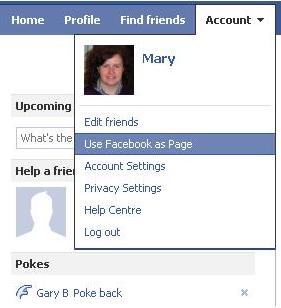
    2   Choose Use Facebook as Page from the Account menu (currently a drop-down in the top right corner ... it may move around in future).

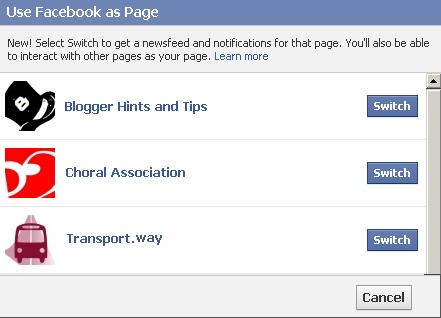
    3  Click Switch beside the name of the Page that you want to share to, from the list shown.   (There may not be a list if you are only an administrator on one page)


    This will take you back to whatever Facebook screen you were on before.  However when you do anything (eg click Top News or Recent, post to someone'e Wall, etc), it looks like it was the Page, not your Profile, that did the action.

    This means that you can share a blogger link in the usual way, and it will look like it was shared by the Page - and it will be shared to the Fans of the page, not to your personal Friends.

    And if you are not an administrator?
    If you're not an administrator for a Facebook Page, then you cannot switch to it.   You may be able to post to its wall, depending on the security settings that the administrator has entered - but you will need to share the blog (etc) manually.

    Current limits and problems:

    I'm 99% certain that you need to be logged in to Facebook  and reading the blog using the same browser (ie in two different tabs or windows) for this to work.

    Also, at the moment, there is a problem with Facebook's own social plugins (the Like / Recommend / Send buttons, and at least some of the other badges):  when you are using Facebook as a page and looking at a website which has the Facebook plug-ins installed, then the wrong thing is shown.   For example, on Blogger-HAT I'm currently seeing
    • My Facebook profile picture instead of the Like / Send buttons above and below posts, and
    • A big Facebook logo instead of the Like badge for my page.
    This means that I cannot use the Like/Send buttons to recommend new posts to my Page.  However the old-style Share button does still look and work correctly (I just tried it out on BloggerSentral, to be sure - see the result here).

    For my own posts, I don't think this is much of a problem:  I'd rather do the sharing manually, so that I can customise the message to the section of my audience who follow my blog on Facebook rather than on Twitter or through RSS or using a follow-by-email subscription.   But it may be more of an issue if you want your readers to share your blog, and they would like to do it on their own Facebook Pages instead of their Facebook Profiles.    Lets hope that Facebook fix this soon.


    Automatically sharing to a Page:

    Many people would like a Page to be automatically updated when they post to their blog.  

    I've heard lots of people saying that this can be done, and talking about doing it via RSS feeds etc - but personally I've not succeeded in making this work reliably.   For one of my pages that has quite a few fans, it worked occasionally - and it was a bit annoying when I couldn't control the timing of the page update because the feed seemed to be delayed.

    Have you found a method that works every time?


    Related Articles:


    Adding Facebook's Share button to your blog

    Putting a badge for a Facebook page into your blog

    Putting a badge for your personal Facebook account into your blog

    Tools for linking Blogger and the social media

    Putting "follow me on Twitter" into your blog

    Why RSS matters to bloggers

    Making an email sign-up option for your blog

    Thursday, 7 July 2011

    Putting a "follow me on Twitter" button onto your blog

    This article explains how to put an official "Follow me on Twitter" button onto your blog.

    "Follow-me" VS "Look-what-s/he said"

    Previously, I explained the diferent approaches to linking your blog and the social media.   In particular, I looked at the difference between "follow me" and "look what s/he said over there".

    If your blog has a Twitter account, you may want to offer your readers a quick way to follow your tweets  rom their own twitter accounts.   This is an example of the "follow-me" approach, and is what this article is about.


    How to add Follow Me on Twitter

    1  Go to Twitter
    If you don't already have a Twitter account for your blog (or for yourself, if you blog is a personal one), you may need to sign-up with one.  Or if you do have one, then just log on.

    2  Look at the buttons they offer
    Today, you get to this by clicking on the Resources link, which is in the panel at the bottom of the left-hand-sidebar.

    This takes you to:  http://twitter.com/about/resources: where you can find lots of useful things including Follow button options.

    (Last time I updated this article, you had to click Profile on the top menu bar, then click Resources which was near the bottom of the right-hand panel.   Twitter seem move this to a different place on their page fairly often, so do have a good look around for it - or for Buttons or something similar if you can't find the resources link.)


    3  Choose Follow, and set the options you want:

    • Check that your Twitter account name is correctly in the User box (it should be, if you're logged in to the right twitter account at the time)


    • Choose whether or not to show your Twitter account name


    • Choose a button size (large or not)


    • Choose what language to show the button words ("follow ... on") om/


    4  Copy the HTML


    5  Go to your dashboard in Blogger, and add the code to your blog.  

    There are several ways to add 3rd party HTML to your blog, depending on where you want to put it.  A "follow me on" button is probably more appropriate in a gadget (option one in that article) than in a place in your template where it relates to individual posts.


    What your readers see

    If you use a new style follow tool:
    • A reader who is not logged in to Twitter when they click your button is asked to log in.
    • After they have logged in to Twitter, they are added to your Twitter followers list, and the icon-label displayed on your blog changed from "follow" to "following".

    If you use the old style button, then:
    • When a reader clicks your Follow-me on Twitter button, Twitter loads in the current window.
    • If they are already logged in to Twitter, they're shown a summary of your profile, with Follow, Add to List and Block buttons.
    • If they are not logged in to Twitter, they're shown a welcome message that describes Twitter and invites them to sign-up or to log in.


    Related Articles:


    Putting a "follow me on Facebook" button onto your blog

    Adding a "Tweet" button (ie look what s/he said) to your blog

    Putting a "share this on XXX" button into your blog

    Adding 3rd party HTML to your blog

    Giving a Share this on LinkedIn option on your blog

    Options for linking your blog and the social networks