Register Your Domains Hassle-Free
Showing posts with label New interface basics. Show all posts

Wednesday, 1 February 2012

How to edit your Blogger template

This article is about how to edit Blogger templates, using either the old or new interfaces.

It supports many other articles on this site, which suggest specific template changes to solve particular problems.


Previously, I've looked at whether it's a good idea to edit your Blogger template or not.

For many people, editing the template is acceptable, because it is the only way to do what they want (remove the attribution, show a gadget on the homeppage only, add a Facebook like button to posts, etc).


In general, the process to follow is:
  • Open the template-editor
  • Make a back-up copy of the template, as it is now
  • Make the change
  • Check that it works, and if not, go back to the previous template.

Of course it's not quite that simple - there are different procedures for working with dynamic vs designer or layout templates.


How to open Blogger's template editor, for dynamic template blogs:


If your blog has a dynamic template, then use the see-all-posts icon for the blog to get into it the blog-options screen for the blog that you want to edit.

When you are in the see-all-posts mode, the the address bar in your browser is like this:
http://www.blogger.com/blogger.g?blogID=5381944372768369653#allposts/postNum=0

Copy your blogID number - that is, the digits between blogID= and #allposts (it's bold in the example above)

Go go
http://www.blogger.com/html?blogID=NNNNNNNNNNNNNNNNNNN
where you have replacd NNN... with your blogID


Note:  the last time I tried this, it automatically opened in the old interface's template editor.   As always, make sure you take a backup copy of the template - see instructions below before changing this.


How to open Blogger's template editor, for non-dynamic templates


  • Go to the Design tab
  • Click Edit HTML
  • Note:  this step has now been removed - however I've left it here for now, because I suspect that it may come back in future:
    Click Proceed


How to edit your template

Make a backup copy of your current template:

It's tempting to skip this if you're only making a small change. I even skip it myself sometimes. And it's not needed if this is the first time you've ever customised your template - because you can recover from problems by just reinstalling the standard template.

But if you would be upset to lose any template changes you made earlier, or if the change you are making now is not minor, then I strongly recommend making a copy before you start, just in case.  To do this
  • Click the Backup / Restore button near the top right of the dashboard (as shown below)
  • Click the Download Full Template button, and then wait while the file downloads.
  • After the download has finished, find the place where your computer puts downloaded files.
  • Find the file that was just created,
  • Rename it to something sensible
     (eg MyBlog template backup before change 31 Jan 2012.xml)
  • Move the file to somewhere safe: usually somewhere on your computer is fine - or you make like to upload it to somewhere like Google Docs, to be absolutely certain that it won't get lost.


Make the change to your template:

  • Check whether the change you are making needs the Expand Widgets checkbox off or on, and put it to the right state.
    (If the article telling you want to change doesn't mention it, then assume it should be off.)
  • Find the code you need to change:

    See this article from Southern Speakers if you're not sure how to use the find-feature that Blogger have now built into the template editor.

    Note:   many of the "how to" articles say to make sure that the Expand Widgets checkbox off or on.   This checkbox has now been removed from Blogger's template editor.    If the instructions you are following says to leave it "off", then you should just be able to follow it as is.    However if you are told to turn it on, then you need to find the correct part of the code by searching for the widget-id or section name, and then "unfold" that to see the complete code.   
  • Make the change (this article doesn't go into the principles of template design, there are plenty of other articles and websites about that: I'm assuming that you know what you need to do).
  • Click the Preview button:

If Blogger can make sense of the change you made, then a new window or tab opens, showing a view that looks like your blog's homepage. It's not a real copy of your blog (the links won't work, the spacing might not be quite the same, and it will have the word "Preview" diagonally in the top left corner).


Do a quick check that the screen looks right - for some changes you even be able to tell if the change has been successful just from this preview screen.

However:  If the new window/tab shows an error message like
Your template could not be parsed as it is not well-formed. Please make sure that all XML elements are closed properly. <br/> XML error message: The element type "div" must be terminated by the matching end-tag "</div>".Error 500
or
Your template could not be parsed as it is not well-formed. Please make sure that all XML elements are closed properly. <br/> XML error message: Element type "b:widget" must be followed by either attribute specifications, ">" or "/>".
then Blogger has not been able to understand the change you made. Sometimes the error message gives a clue about what's wrong, although it can be misleading.   Check that you made the change correctly - fix any errors and click Preview again.  If it still doesn't work, ask for help from the place that suggested the change you are making.

Once you are happy that the preview screen looks OK, click the Save or Save template button.


How to test your template change:


Some template changes can be checked very easily, sometimes from the preview screen.

But if your change isn't visible on the front screen, you must check it after you have applied it. What to verify depends on your template type, what the change was, and what other features (eg the page-gadget as a menu, the archive widget, ) your blog uses. You need to decide what to test, based on all of these.

At least, I alwways click on and check on these things when I've made a major template change:
  1. the home page
  2. the items in the menu bar
  3. a label value
  4. an archive widget entry
  5. custom-search-engine results
  6. comments

And if I'm being particularly reader-focussed, I'll also check these things in more than one browser:   usually in the current version of Internet Explorer, Firefox and Chrome.


Fixing Problems:


If you find that the template change has caused problems, then ou have have a choice to make:
Can you and your readers live with the problems on your blog for "a while", while you look for other solutions? 
Or 
Do you need to remove the change right now, so visitors can use your blog as it was while you solve the issues.

There is no right answer to this question:   It's a personal decision, based on the blog, and your readers.

But if you do need to remove the template change, here's how to do it:
  • Click the Backup / Restore button near the top right of the dashboard
  • Click Choose File and find the file that you downloaded earlier
  • Click Upload.


It is best to restore your template before you have changed any gadgets.  If you get a message about widgets being missing, then it means that the gadgets associated with your blog are not the ones referred to in the template.   If this happens, you need to decide whether to deep or delete any "orphaned" ones, and may need to check their settings again.


Making complicated changes:


If you your template may need a lot of "surgery" while you figure out how to make a change, then it may be a good idea to build a private test-blog to do the work in, and only copy the contents into your "real" blog template when you are certain that you've got it correct (or correct-enough).


Related Articles:


Advantages and disadvantes of editing your Blogger template

 How to expand the widgets in your template editor.

Adding CSS formatting rules to your blog, without editng the template

How to remove the "powered by Blogger" attribution from designer-template blogs

Putting a gadget on the homeppage only

Planning changes to your blog - without readers seeing what you are doing

Saturday, 28 January 2012

Editing published posts in Blogger

This article describes how to edit a post that has already been published in Blogger, using the new interface.


Where has the Edit Posts link gone?

Picture by RichTea
From Wikimedia Commons
Blogger's new user-interface (UI) was introduced in September 2011.   ("Interface" is just a long word for the part of Blogger that you use to do things.)

The new look has organised things in a slightly different way to the older (ie pre-September 2011) version of Blogger, and some functions are a little harder to find.


The Edit Posts link has been replaced by a list showing you all posts, and Edit links under each post in this list. These are the tools you need to use to change a post once it's already been published, for example to fix spelling errors, or add new information.


How to change a post that is already published:

Log in to blogger at http://www.blogger.com, using the Google account that wrote the post, or one that is an administrator for the blog
If you made the blog, then you are automatically the administrator for it to start with - so just use your normal Blogger account.


You can now see the Blogger Dashboard. If you are using the new interface it looks like this:


The section in the middle lists all the blogs that your account has access to.
Most people reading this article will only have one blog - at the moment - but it's worth understanding how extra ones look.


Each blog has one line in this section.   In the middle of the screen, beside the blog name, there are four icons (small pictures):


  • A pencil (for write a new post)
  • A stack of "papers" (for viewing your existing posts), which is right next to a drop-down arrow (for getting to the other blog -options)
  • A button labelled "View Blog" (no prizes for guessing what it does!)   

Click on the stack of papers:  this opens a list of all your posts.


In the list, hover your mouse over the title of the post you want to edit.    The link will highlight (slightly) and you will see some links under the post-title. The links are
  • Edit
  • View  
  • Share (this one only shows up if you've linked Google+ and the blog)
  • Delete.


Click Edit:  this takes you to the post editor. Make the changes you want, Press the Update button at the top of the screen to save them. Job Done!


The quickedit pencil - a fast alternative

Depending on how your Post Template is set up, you may see a Quick Edit Pencil icon when you are reading a post.   If it is turned on, it will be either below the post-title, or at the bottom of the post above or below the contents. Clicking this icon takes you directly to the post-editor.

You will only see the icon if it's turned on for your blog (in Layout > Blog Posts, edit), and if you are logged in to Blogger using an account that is allowed to change the posts.

Your readers will never see it.


 Saving changes while you edit the post:

 Because you are working on a post that is already published, the "autosave" feature will not work. So if you are going to make a lot of changes, you may want to copy the post to a private or test blog.   There you can publish the post (ie save it properly) as often as you want, and no one will see the messy in-between-old-and-new stages.

 When you are finished, click the Publish button (near the top-centre of the screen)


What your readers see

Until you click Publish, the post that your readers see is the same as it originally was - no matter what changes you have made in the post editor.

If there is a post that you urgently need to "take down", then click the Revert to draft button (at the top of the screen, next to publish).   This makes the post unavailable until you next click publish:   in the meantime, anyone who tries to see it using a link will see this message:

Page not found Sorry, the page you were looking for in the blog YOUR BLOG TITLE does not exist.


Making changes to a post that you didn't write
Censored rubber stamp

Some people want to edit blog-posts that they were not the author of,  and which they do not have administrator access to.

The short answer is that you are not able to do this - you need to ask the post-author or blog-administrator do it for you.

However if the blog-post has copyright material, there may be some actions you can take.   And if you believe it breaks's Blogger's rules, you can report a terms of service violation.


Related Articles:


Blogger, blogs and bloggers: Posts, pages and screens. Basic Blogger concepts.

How to move a post from one blog to another

Understanding Google accounts

Giving someone author access to your blog.

Planning changes to your blog - in private

Making a new administrator for a blog

Copyright, blogs and bloggers

Wednesday, 12 October 2011

Not showing any posts on your blog's home page

You can set your blog up so that no posts are shown on the main screen - provided you have used some of the other "home page" aproaches to give readers other ways of getting to your content.

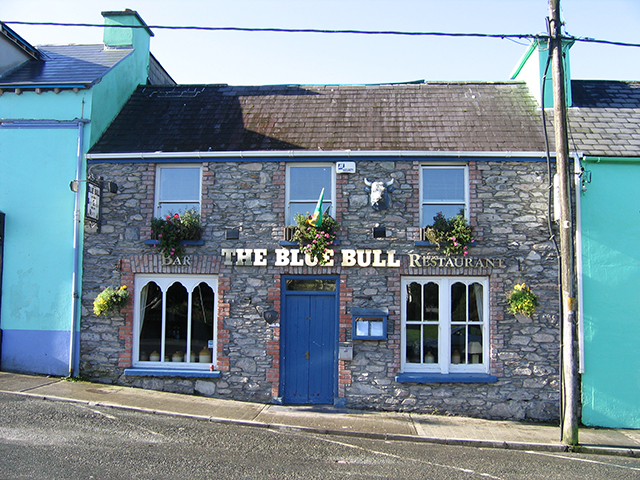
A blog with no posts is like a pub with no beer?

Blue Bull, Sneem - geograph.org.uk - 889696Previously I've explained how to only show one post on the main page - and this explanation looked at the types of screen that your non-dynamic-template blog can have (main, label, archive, post, and page).

But some people who want to give their blog a home page want to go further than that, and not show any posts on the main screen at all.   (Remember, the main screen is where people who navigate to your blog, rather than to posts within it, go.)

This sounds like a strange thing to do - after all, blogs are about posts.

But actually it's fine, provided you use some other tools to let readers move around the blog.  I've made a 150+ page blog this way, and it works very nicely because I have organised the information and used of "key" pages (lists of bus-routes, suburbs, shopping centres, etc) with tables that link to many other posts.


How to show no (ie zero, 0) posts on the main screen?

Some people want to do this, as part of the process of giving their blog a home page.  Again, it's not possible (at the moment, anyway) using Dynamic templates, but can be done with others:

In Blogger-2011:
  • Choose the Options drop down from the main menu, 
  • Choose the Settings > Posts and Comments panel from the left sidebar.  
  • Enter zero (0) into the Show at most field
  • Click Save Settings in the top right hand corner of the screen.

In the pre Sept-2011 Blogger:
In this interface, you can change posts-per-page on the Settings > Formatting screen to 0, and it works  nicely.

Unfortunately the Design > Page Elements > edit Blog Posts screen doesn't accept 0 as a valid value, so if you later need to change something on it, you need to:
  • Change it to 1 on the edit Blog Posts  screen
  • Make the other changes you need to make on that screen
  • Save the changes
  • Use Settings > Formatting to change posts-per-screen back to 0, 
  • Save again.

Doing this means that there is a slight period (maybe a minute or two, depending on how fast you are) when your blog will show a post on the main screen.   But this is a problem that most people can live with.

What your readers see: 
Unless you take steps to avoid it, your readers will see a grey box saying "0 Posts" when they look at your blog's main URL.   Some of the things you can do to avoid this include hiding the "showing posts with label XXX" message, and creating a gadget that only shows on the "home" page.


Related Articles:


Limiting your blog to only have one post on the main page

Giving your blog a home page

What are dynamic view templates?

Blogger template types
.
Using tables in your blog

Displaying a gadget only on the home page

Saturday, 10 September 2011

Options in Blogger's post-editor: where to find them

This article explains where to find the options for each post or page, in both the updated and older Blogger.

Where to find Post Options / Options:

Each individual post in Blogger has options that can set for it, including
  • The date it was (or is to be) published, 
  • How to handle HTML in the post
  • Whether to allow comments
  • Label(s) that are applied to it
These values for these are set in the Post Settings-Options / Post Options area:


In post-Sept-11 Blogger (the "new" interface)
The Post Settings bar is on the right hand side of the screen:  Click on Post Settings (unless it's already open), and under that there are separate sections for
  • Options (it has a gear-wheel beside it), 
  • Location, 
  • Published on 
  • Labels  

This shows the current values.for the post:  after you have changed them, you can press the Done button to hide that section again.


In pre-Sept-11 Blogger (the "old" interface)
Post Options is at the bottom of the post-editor screen, like this:.


Related Articles:


Explaining the new blogger interface - the challenges

Changing the date for a post

How line breaks are handled in blogger

Copying posts from one blog to another

Getting started with Blogger
.